As an Amazon Associate, we earn from qualifying purchases. Some links may be affiliate links at no extra cost to you. Although our opinions are based on curated research, we haven't used these products. Articles generated with AI.

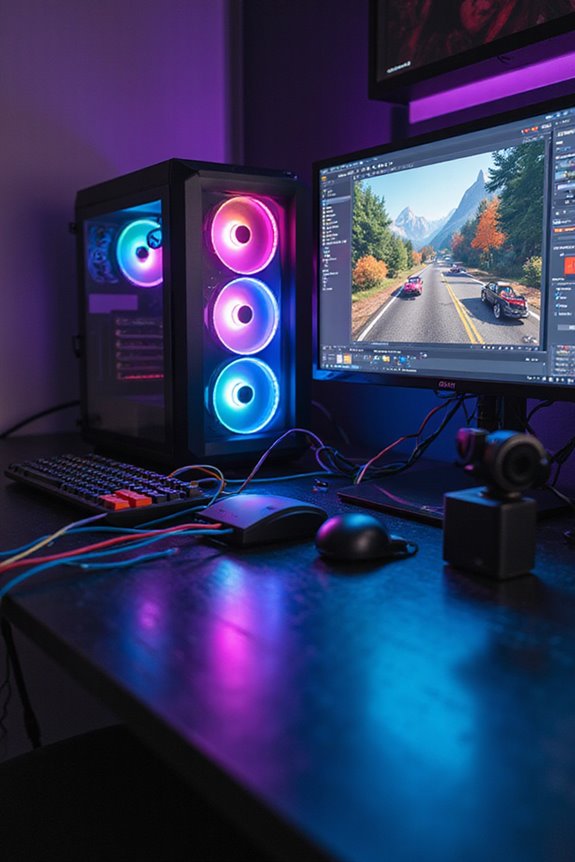
How To Connect Gaming Pc To Streaming Pc

To connect your gaming PC to a streaming PC, start by connecting an HDMI cable from the gaming PC to a capture card‘s HDMI input. Use a 3.5mm aux cable for audio to maintain sync. Confirm your gaming setup meets the hardware requirements, like an Intel Core i5 CPU and 16 GB RAM. Wired connections are key for stability. Once set up, you’ll fine-tune your software to guarantee smooth streaming. Stick around, and I’ll share even more tips!
Key Takeaways
- Connect the gaming PC’s HDMI output to the capture card’s HDMI input for high-quality video transfer.
- Use a 3.5mm aux cable to synchronize audio between the gaming and streaming PCs.
- Install the capture card in the streaming PC to facilitate easy management of video feeds.
- Utilize an Ethernet connection for stable and low-latency communication between both PCs.
- Set up multiple displays to monitor gameplay and streaming software simultaneously for effective management.
Essential Hardware Requirements
You may be interested
When it comes to setting up a gaming PC alongside a streaming PC, having the right hardware is essential for a smooth experience. For CPU specifications, I’d recommend at least an Intel Core i5 or a solid AMD alternative for great multitasking. Multi-core support and a higher thread count are key; they handle gaming and streaming simultaneously without breaking a sweat. As for RAM requirements, 16 GB is the bare minimum, but if you can swing it, 32 GB is ideal for streaming. Faster RAM speeds can really boost your system too. Don’t forget about storage—M.2 NVMe SSDs are lightning-fast, ensuring quick game loads and efficient data transfer. Trust me, investing in quality components pays off!
Setup and Connections
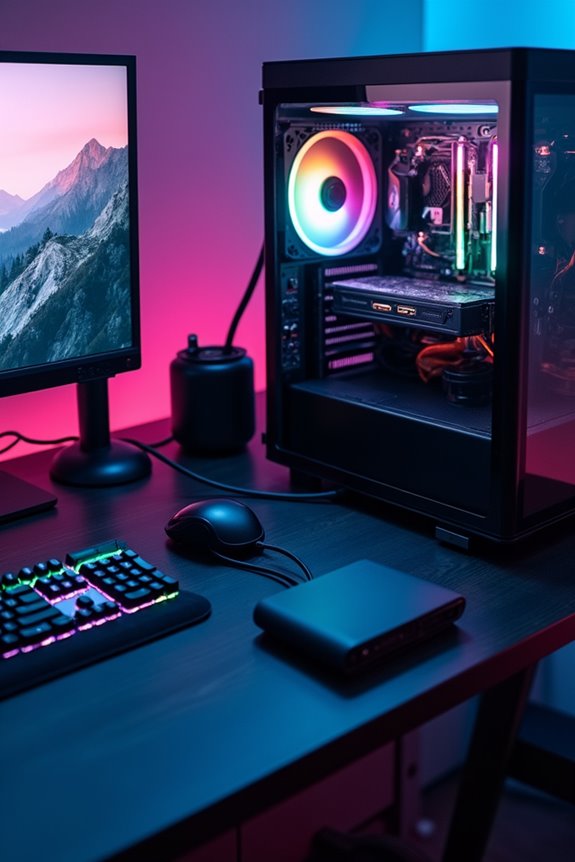
Setting up your gaming PC and streaming PC is like orchestrating a well-rehearsed performance, where each component plays an essential role. First, connect your gaming PC’s HDMI output to the capture card‘s HDMI input, ensuring the video quality is excellent. For audio management, use a 3.5mm aux cable to transfer sound, which keeps things in sync. It’s best to install the capture card in your streaming PC for easy access. I recommend using Ethernet connections for stability, avoiding any lag during your broadcasts. Monitor your setup with multiple displays, showing both your game and streaming software. Don’t forget to power both PCs adequately—this prevents any performance hiccups during your streaming sessions.
Software Configuration
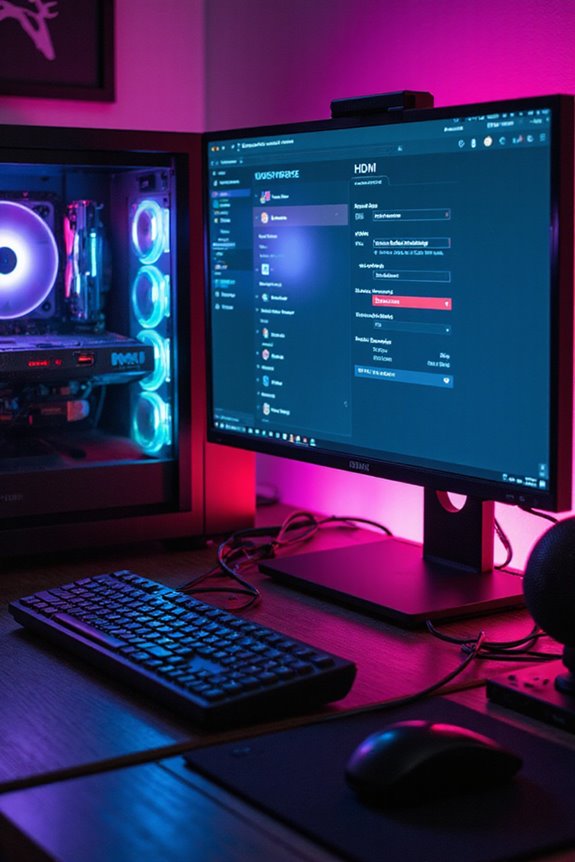
To kick off your streaming journey, it’s vital to nail down your software configuration. I recommend starting with a solid software selection: OBS Studio is free and highly customizable, while Streamlabs and XSplit offer paid options with extra features. When you’re setting up, focus on your encoder settings; for Twitch, I typically use 1080p at 60 FPS and a bitrate of 6000 Kbps. If you have an NVIDIA GPU, NVENC is a great choice since it offloads some work from your CPU. Don’t forget to add sources like game capture, webcam, and audio input to create a polished stream. Trust me, getting this right makes a world of difference for your viewers!
Recommended Products

⭐【Innovative Product with Leading Technology】- Equipped with an advanced H.265/H.264 dual encoding chip, supports 1920x1080 resolution input and output, achieving 60fps high-definition presentation with realistic and delicate color reproduction and lossless detail. It also supports HDCP 1.4 decryption, easily decoding various HDMI high-definition video sources, delivering a cinematic visual experience for both professional live streaming and high-definition content transmission.
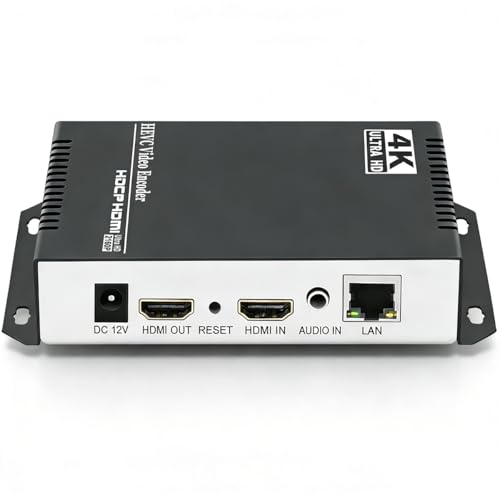
【Innovative Product with Leading Technology】- Equipped with an advanced H.265 /H.264 dual encoding chip, supports 4K UHD (3840x2160) video input and output, with a maximum frame rate of 30fps at 4K resolution and up to 120fps at 2K and lower resolutions, delivering a smooth and detailed visual experience. It also supports HDCP 1.4 decryption, easily decoding various HDMI ultra HD video sources, delivering a cinematic visual experience for both professional live streaming and 4K ultra HD content transmission.
Troubleshooting and Optimization
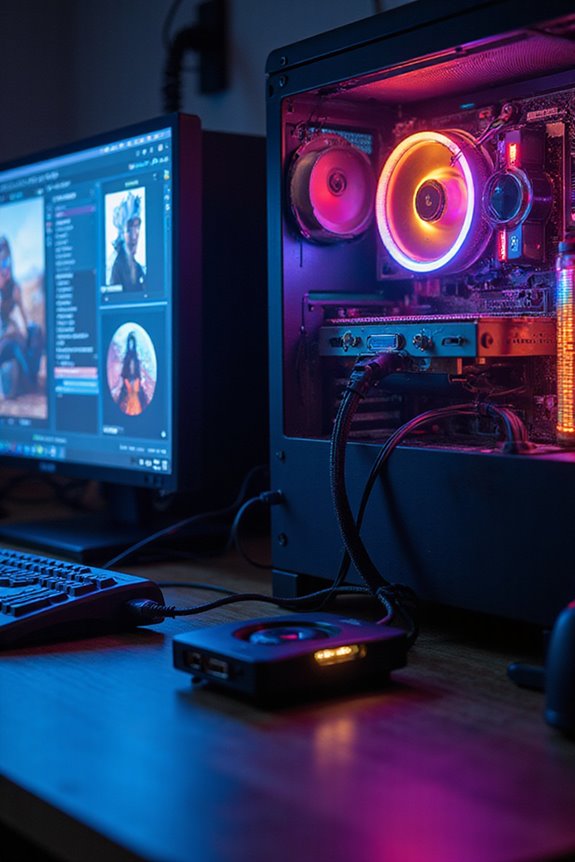
Getting your streaming setup just right can be a bit of a journey, but it’s definitely worth the effort. If you run into network issues, a good first step is restarting both your gaming and streaming PCs. This simple action can often resolve connectivity problems. If that doesn’t work, try resetting your network adapter or changing your DNS server to something like Google DNS for better stability.
Using a wired LAN connection instead of Wi-Fi is another solid option; it reduces latency considerably. Also, make sure your firewall isn’t blocking any streaming services. Finally, keep those drivers updated and consider regularly resetting your router to maintain a smooth connection. These connectivity solutions can really enhance your overall streaming experience.
Performance and Monitoring
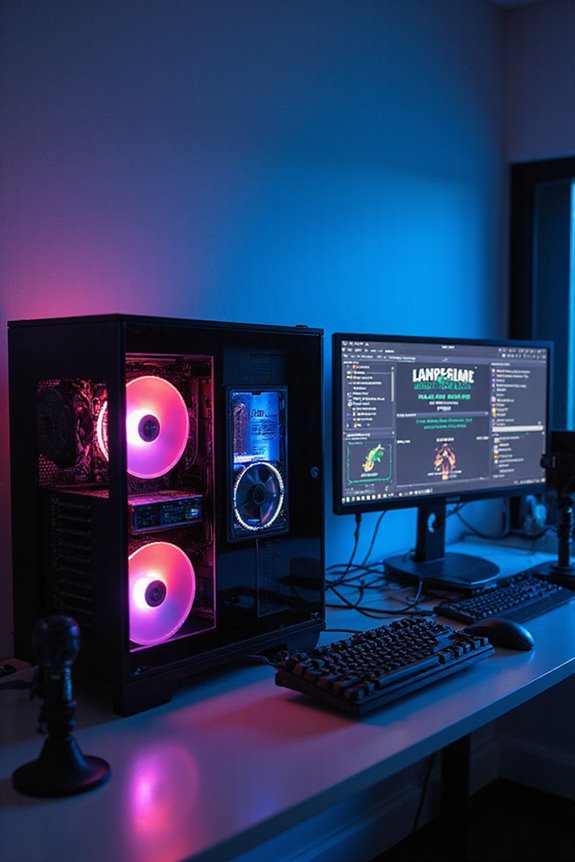
While diving into the world of performance and monitoring, it’s essential to keep an eye on how your gaming and streaming PCs are functioning together. Using tools like HWInfo and NZXT CAM, I can track performance metrics such as CPU and GPU usage, ensuring efficient resource allocation. These programs also monitor temperatures, preventing overheating during intense gaming sessions.
Custom alerts help me stay informed about critical issues, while fan speed control minimizes noise without sacrificing cooling. I love using FPS Monitor for real-time data during gameplay, helping me tweak settings for peak performance. Overall, these tools make it easier to identify bottlenecks and enhance my streaming experience, ensuring everything runs smoothly and efficiently.
Advanced Configurations
As you immerse yourself in advanced configurations for your dual-PC setup, you’ll find that the right hardware and software choices can greatly enhance your streaming experience. A solid capture card, like the Elgato HD60s, guarantees high-quality gameplay capture. For RGB lighting, tools like OMEN’s Light Studio let you create custom profiles that add flair to your streams.
On the technical side, using NVENC for NVIDIA GPUs or x264 for CPUs can optimize your stream quality. Don’t underestimate the importance of network optimization; software like OMEN Gaming Hub can prioritize your gaming and streaming traffic, minimizing lag. Remember, balancing these elements can lead to a more professional and visually appealing streaming experience, keeping your audience engaged.
Tips for Streaming Success
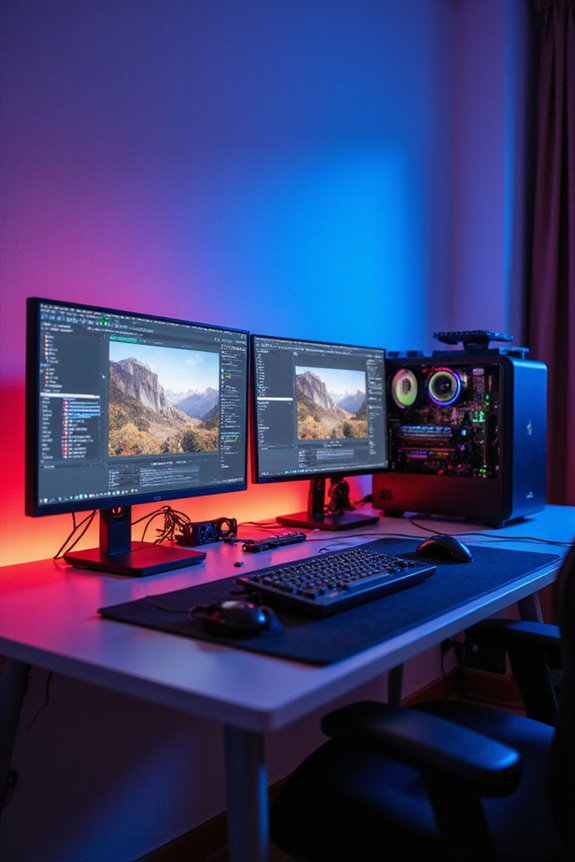
Achieving streaming success involves more than just setting up your hardware; it’s about enhancing every aspect of your setup. For instance, I always close unnecessary apps to free up CPU and RAM, ensuring smoother streaming. Lowering in-game graphics settings can also help maintain performance without sacrificing stream quality.
Using GPU encoding like NVIDIA NVENC reduces the load on my CPU, allowing for better gaming and streaming. I maintain a wired internet connection for reliability and cap my FPS slightly above my monitor’s refresh rate for ideal GPU usage. Investing in a high-quality microphone and camera enhances audio and visual quality, both essential for streaming engagement. Remember, it’s all about refining your content creation process for the best viewer experience.
Final Thoughts on Streaming Setup
When setting up a streaming configuration, it’s vital to evaluate the balance between performance and quality. A dual setup, featuring a dedicated gaming PC and a streaming PC, offers significant streaming benefits. This configuration offloads encoding tasks, allowing for smoother gameplay while maintaining high video quality.
I recommend investing in quality hardware, like a powerful CPU and sufficient RAM, to guarantee everything runs seamlessly. A wired network connection is essential for stable data transfer between the two systems. Don’t forget to optimize your audio settings, too. Regularly monitor resource usage to fine-tune performance. With the right setup, you can create a more engaging streaming experience, reducing lag and enhancing your audience’s enjoyment. Happy streaming!
Frequently Asked Questions
Can I Use a Laptop as a Streaming PC?
Absolutely, I’ve used a laptop for streaming before. Just make sure it meets the right laptop specifications, like a good CPU and GPU, for ideal streaming performance. It can work really well with careful setup.
What Is the Ideal Bitrate for Streaming?
I know it can feel overwhelming, but finding the ideal bitrate for streaming is essential for quality. I usually aim for 4,500–6,000 kbps for 1080p; adjusting bitrate settings can really enhance your streaming quality.
How Do I Reduce Streaming Lag?
To reduce streaming lag, I focus on streaming optimization. I close unnecessary programs, adjust my OBS settings, and prioritize my connection. These latency reduction techniques really help improve my overall streaming experience.
Is Wireless Internet Sufficient for Streaming?
Imagine a fragile bridge swaying in the wind; that’s how I view wireless performance for streaming. It can be unstable. I’ve found wired connections offer much better internet stability for a smooth streaming experience.
Can I Use a Single Monitor for Both PCS?
I’ve found using a single monitor for both PCs can be tricky. Monitor switching and adjusting display settings are essential, but it’s often easier to manage with two monitors for smoother control and better performance.