As an Amazon Associate, we earn from qualifying purchases. Some links may be affiliate links at no extra cost to you. Although our opinions are based on curated research, we haven't used these products. Articles generated with AI.

How To Enable Gaming Features For Windows Desktop

To enable gaming features on your Windows desktop, I recommend starting with Xbox Game Bar, which I access using the Windows key + G. It allows for gameplay recording and performance monitoring. Next, I check if DirectX 12 Ultimate is activated; it boosts graphics with features like Raytracing. Don’t forget to turn on Game Mode to optimize system resources and keep everything updated for stability. If you want a deeper exploration into configuring your gaming setup, there’s more to explore!
Key Takeaways
- Enable Xbox Game Bar by pressing Windows key + G for gameplay recording and performance monitoring features.
- Activate DirectX 12 Ultimate for enhanced graphics, requiring Windows 10 Version 2004 or later and a compatible GPU.
- Turn on Game Mode to prioritize system resources, improving performance and reducing lag during gameplay.
- Regularly update your system’s drivers and Windows for optimal performance and stability while gaming.
- Adjust your power plan to High Performance and set higher refresh rates for smoother gameplay and reduced screen tearing.
Enabling Xbox Game Bar for In-Game Controls
You may be interested
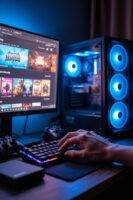
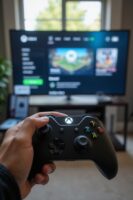

If you’re looking to enhance your gaming experience, enabling the Xbox Game Bar is a great first step. With just a quick press of the Windows key + G, you can plunge into a world of features. I love how it lets me record gameplay, take screenshots, and keep an eye on my system’s performance—all in real-time. You’ll need the Xbox app installed and signed in to access everything, but it’s worth it for the audio controls and customizable widget menu.
Keep in mind, some features need Windows 10 22H2 or newer, but it’s compatible with most devices. So, whether I’m on my desktop or laptop, the Game Bar makes it easy to manage my gaming experience, right from my screen.
Activating DirectX 12 Ultimate for Enhanced Graphics
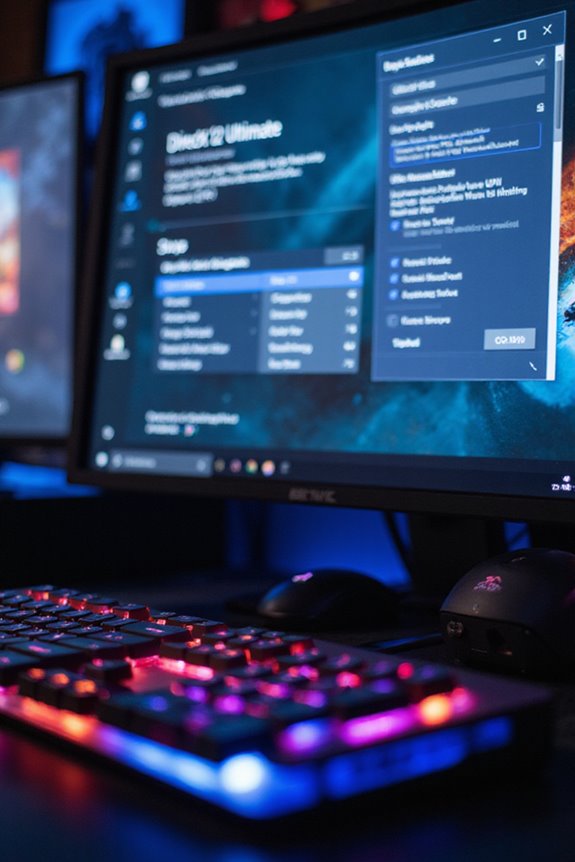
Activating DirectX 12 Ultimate can considerably elevate your gaming visuals, so it’s worth considering if you want to experience the latest in graphics technology. With features like Variable Rate Shading, it dynamically adjusts shading rates, enhancing both performance and detail. DirectX Raytracing 1.1 makes lighting and reflections more realistic, while Mesh Shading allows for intricate geometries in real-time.
To get started, confirm you’re running Windows 10 Version 2004 or later and have a compatible GPU, like NVIDIA’s RTX 3060Ti or AMD’s RDNA 2. Don’t forget to update your graphics drivers! Once everything’s in place, you’ll enjoy a smoother, more immersive gaming experience, making your favorite titles look even better. Trust me, it’s a game-changer.
Recommended Products
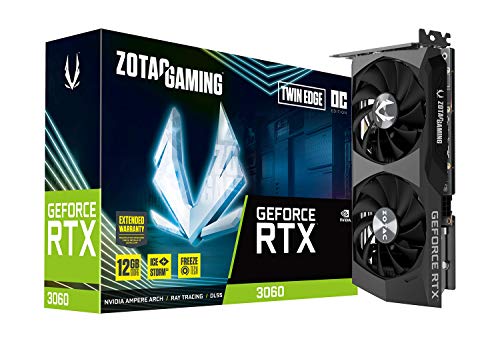
NVIDIA Ampere architecture, 2nd Gen Ray Tracing Cores, 3rd Gen Tensor Cores

The Radeon RX 580 GPU is a graphics card by AMD. Built on the 14 nm process, and based on the Polaris 20 graphics processor, in its Polaris 20 XL variant, the GPU supports DirectX 12. This ensures that all modern games will run on AMD Radeon RX 580 2048SP.
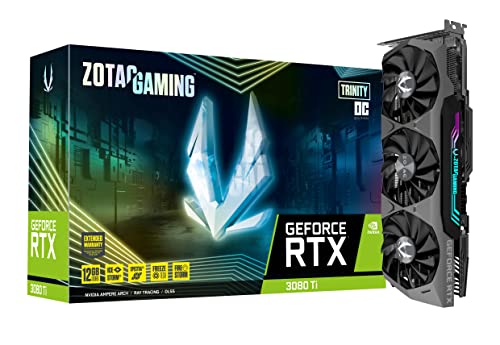
Memory Speed:19 Gbps.Digital Max Resolution:7680x4320
Optimizing System Resources With Game Mode
While it might seem straightforward, optimizing system resources with Game Mode can genuinely enhance your gaming experience. By prioritizing CPU and GPU resources, Game Mode suspends non-essential background tasks, like OneDrive sync or antivirus scans. This means your game gets the attention it deserves, potentially increasing frame rates and reducing lag.
If you’re on a low-to-mid-range PC, you’ll notice these improvements even more. Less overhead translates to smoother gameplay, and notifications won’t interrupt your sessions. However, keep in mind that on high-end systems, the benefits might be less pronounced. So, take a moment to enable Game Mode and see how it transforms your gaming—it’s like giving your games a little boost they’ve been craving!
Keeping Your System Updated for Stability
Keeping your system updated is essential, especially when it comes to maintaining stability during gaming sessions. Regular driver updates are important; they guarantee hardware components are optimized and fully supported. Plus, security patches keep vulnerabilities at bay, which is critical for smooth gameplay. Staying current helps with compatibility, reduces crashes, and enhances overall performance. I’ve noticed that updates often include performance boosts, sometimes improving frame rates considerably. Bugs can sneak in, but with regular updates, you can squash them before they affect your gaming experience. Remember, a well-maintained system not only runs better but also gives you peace of mind while diving into your favorite games. So, hit that update button—your gaming self will thank you!
Adjusting Power Plan and Refresh Rate Settings
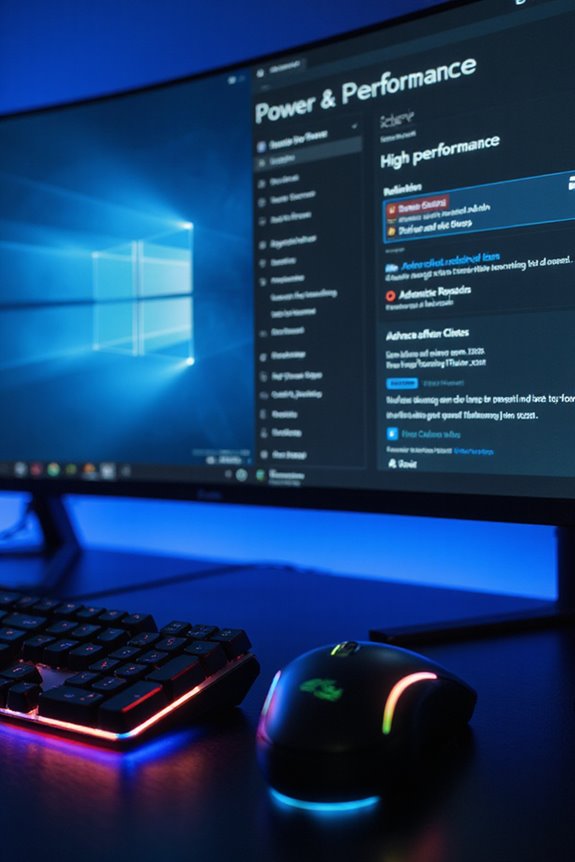
To get the most out of your gaming experience, adjusting your power plan and refresh rate settings is a great place to start. I suggest switching to the High Performance plan, which maximizes your system’s resources without those pesky power-saving interruptions. If you’re feeling adventurous, create a custom power plan to suit your gaming needs.
Don’t overlook your refresh rate settings; a higher refresh rate can make all the difference in fast-paced games. Verify your display settings match your monitor’s capabilities to reduce screen tearing. Syncing technologies like G-Sync or FreeSync can also provide a smoother experience. Just remember, balancing resolution and refresh rate is key to keeping your visuals crisp while guaranteeing smooth gameplay.
Recommended Products
![Silkland 54Gbps DisplayPort Cable 2.1 [VESA Certified], DP 2.1 Cable [16K@30Hz, 8K@120Hz, 4K@240Hz 165Hz 144Hz] HDR, HDCP DSC 1.2a, Compatible FreeSync G-Sync Gaming Monitor 5090 7900XTX, 6.6FT](https://m.media-amazon.com/images/I/41ATl-AEsVL._SL500_.jpg)
【VESA Certified 16K DisplayPort Cable 2.1】Silkland 16K Displayport Cable 2.1/2.0 supports high resolutions 16K(15360*8640)@60Hz with DSC, 8K@120Hz, 4K@240Hz/165Hz/120Hz/144Hz, 2K@360Hz. Silkland 16K DP 2.1 Cable certified by the VESA Association. Supports Dynamic HDR, HDCP 2.2, DSC1.2a. Backwards compatible with DisplayPort 2.0 1.4 1.3, 1.2, 1.2a, 1.1 and 1.0. Support flawless audio pass-thru for uncompressed digital audio channels at 7.1, 5.1 and 2.0. Support 3D stereo imaging technology

Essential QHD performance for any game: Explore detailed worlds in high definition with QHD resolution, fluid visuals, and an iconic new design.

High-Resolution QHD Gaming Display: 27-inch QHD (2560 x 1440) gaming monitor with 180Hz refresh rate designed for professional gamers and immersive gameplay
Configuring Graphics and Display Preferences
Configuring graphics and display preferences can considerably enhance your gaming experience, making it more immersive and responsive. First off, enabling Game Mode in Windows is a must; it optimizes performance by reducing background processes. Keeping your graphics drivers updated is just as essential, ensuring compatibility and performance improvements.
I also recommend enabling Hardware Accelerated GPU Scheduling (HAGS) for reduced latency. Don’t forget to adjust settings in your NVIDIA or AMD control panels for your specific GPU model. For display settings, set your resolution to 1920 x 1080 and crank up the refresh rate for a smoother experience. If you’re looking to push frame rates even further, a gaming monitor with a high refresh rate can make a significant difference in how fluid your gameplay feels. Finally, if you’re into HDR gaming, use the Windows HDR Calibration app to fine-tune your visuals. Happy gaming!
Recommended Products

【INTEGRATED SPEAKERS】Whether you're at work or in the midst of an intense gaming session, our built-in speakers provide rich and seamless audio, all while keeping your desk clutter-free.

MSI's 23.8-inch Full HD IPS gaming monitor (1920×1080) delivers a 1500:1 contrast ratio with wide 178°/178° viewing angles — producing deeper blacks, brighter highlights, and accurate colors from virtually any position for gaming and productivity.

【TRUE TO LIFE COLORS】Experience vibrant and true-to-life colors with 94% sRGB color gamut performance, ensuring accurate and stunning visuals for all your creative and multimedia tasks.
Customizing Peripheral Settings for Optimal Performance
After you’ve optimized your graphics and display preferences, the next step is customizing peripheral settings for peak performance. Start with your mouse; choose a high-precision model with adjustable DPI for pinpoint accuracy. For your keyboard, consider a mechanical one that lets you customize backlighting and set up macro keys for those strategic plays. Don’t forget about your headset—noise cancellation and surround sound can truly elevate your gaming experience. Lightweight designs improve maneuverability, crucial for quick reflexes and precision aiming in competitive FPS gaming. Adjust your monitor settings too, focusing on refresh rates and input lag for smoother gameplay. And if you’re using a controller, make sure it’s compatible and tweak the button mapping for better control. These small adjustments can make a world of difference in how you connect with your games!
Recommended Products

HERO Gaming Sensor: Next generation HERO mouse sensor delivers precision tracking up to 25600 DPI with zero smoothing, filtering or acceleration

The next-generation optical HERO sensor delivers incredible performance and up to 10x the power efficiency over previous generations, with 400 IPS precision and up to 12,000 DPI sensitivity
Monitoring System Performance During Gameplay
How can we guarantee our gaming sessions are as smooth as possible? Monitoring system performance is key. I rely on tools like RivaTuner Statistics Server (RTSS) and HWInfo to track GPU temperatures and CPU frequencies. Keeping an eye on these metrics prevents overheating and optimizes performance during intense gameplay.
FPS Monitor is another favorite of mine, offering real-time insights into frame rates and resource usage. Plus, customizable overlays let me focus on what matters most. While these tools are fantastic, they can sometimes overwhelm; so, I recommend starting with the basics. With the right monitoring, you’ll ascertain your system’s running at its best, letting you enjoy your gaming experience without unexpected hiccups. If you’re also running Windows on a laptop, our guide on optimizing a gaming laptop for demanding workloads covers complementary performance tips worth reading.
Frequently Asked Questions
How Do I Check if My Hardware Supports Directx 12 Ultimate?
Oh, checking if my hardware supports DirectX 12 Ultimate feels like a treasure hunt! I just open the Xbox Game Bar or run dxdiag; it’s like unearthing hidden gems in my gaming setup, and I can’t wait!
Can I Use Xbox Game Bar With Non-Xbox Games?
I’ve used Xbox Game Bar with non-Xbox games myself. It’s great for capturing screenshots and recording gameplay, no matter what you’re playing. You’ll love how easy it is to enhance your gaming experience!
What Is the Difference Between Game Mode and Regular Mode?
You know, I’ve often wondered about Game Mode versus regular mode. Game Mode prioritizes resources for smoother gameplay, while regular mode keeps everything running. It’s like choosing between a cozy night in or a wild party!
How Can I Disable Unnecessary Background Apps Manually?
To disable unnecessary background apps manually, I go to Settings, then Apps. It’s a bit tedious, but I click on each app and adjust the options. It’s worth it for better performance, trust me!
Is It Safe to Overclock My GPU for Better Gaming Performance?
Is it safe to overclock my GPU? It can be thrilling, but risks like overheating and instability lurk. I’ve found careful monitoring and good cooling make it safer. Just remember, it’s a delicate dance!