As an Amazon Associate, we earn from qualifying purchases. Some links may be affiliate links at no extra cost to you. Although our opinions are based on curated research, we haven't used these products. Articles generated with AI.

Master the Configuration of Gaming Controllers on PC

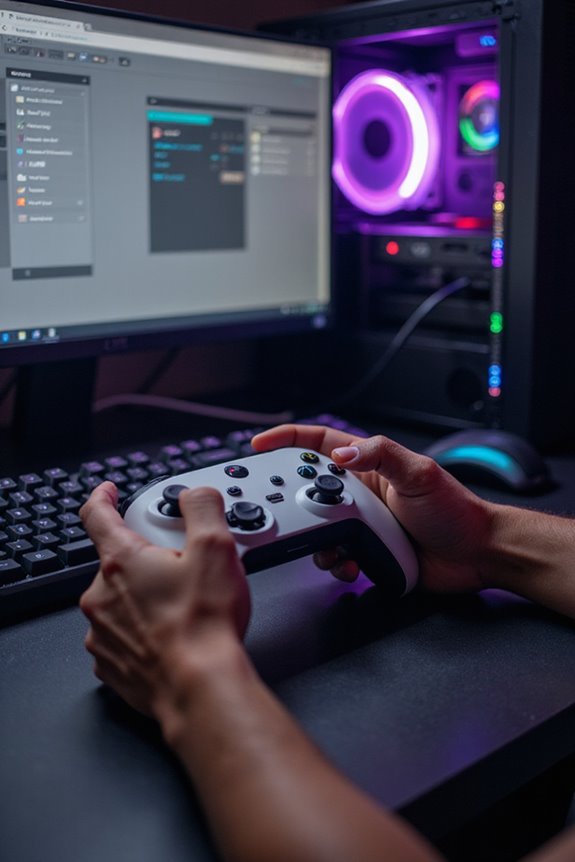
Configuring gaming controllers on PC can greatly enhance your gaming experience. I recommend starting with connection options like USB or Bluetooth for quick setup. Then, customize settings in Windows using the Xbox Accessories app, where you can adjust button assignments and haptic feedback. Third-party software like reWASD can take your configuration to the next level. However, be mindful of compatibility issues and the learning curve. Keep exploring, and you’ll discover even more tips to level up your gameplay!
Key Takeaways
- Connect controllers using USB or Bluetooth, ensuring compatibility with your games for seamless operation.
- Customize button assignments and haptic feedback through Windows settings or the Xbox Accessories app for a tailored gaming experience.
- Utilize third-party software like reWASD or JoyToKey for advanced customization, including mapping gamepad buttons to keyboard keys.
- Troubleshoot common issues by checking game compatibility, cable integrity, and maintaining charged batteries to ensure smooth gameplay.
- Implement advanced techniques like button mapping, trigger stops, and thumbstick sensitivity adjustments for improved control and efficiency in games.
Understanding Connection Options for Controllers
You may be interested

When it comes to connecting controllers to your PC, you’ll find a few options that cater to different preferences and setups. You can easily connect via USB, where most controllers get recognized automatically. If you’re looking for something wireless, many newer controllers support Bluetooth, allowing you to roam free without pesky cables. For those older models, a wireless adapter can save the day, plugging right into a USB port. Xbox Wireless Controllers have their own connectivity, making integration seamless. Most game controllers are designed with PC compatibility in mind, whether it’s through USB or Bluetooth. Just remember, while options are plentiful, not every controller fits every game—so it’s wise to check compatibility before diving in!
Recommended Products

Bluetooth 5.4 + Broad Compatibility - Provides Bluetooth 5.4 plus EDR technology and is backward compatible with Bluetooth V5.3/5.0/4.2/4.0/3.0/2.1/2.0/1.1.

Configuring Controller Settings in Windows
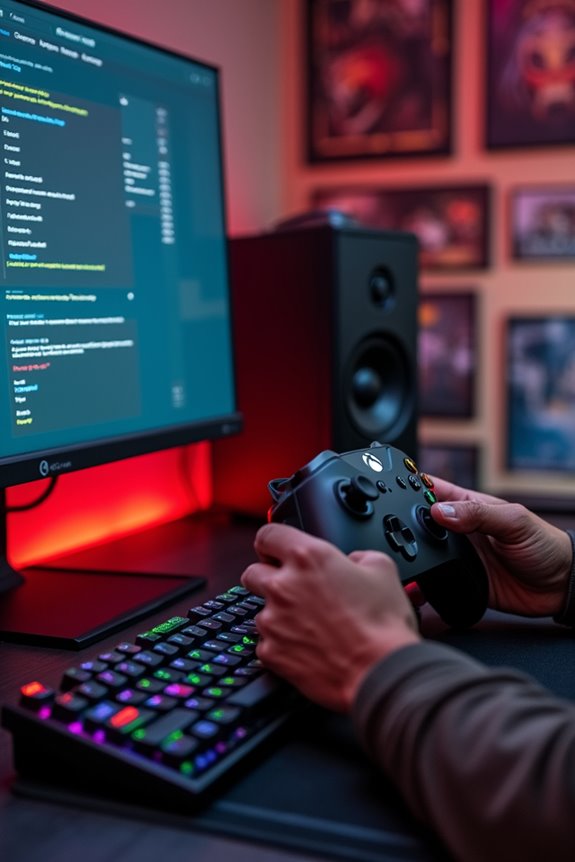
Configuring your controller settings in Windows can really enhance your gaming experience. I love how easy it is to access settings through the search function or the Xbox Accessories app for my Xbox controller. One of my favorite features is assigning buttons; I can swap triggers or customize layouts to fit my gaming style. Adjusting haptic feedback strength adds an extra layer of immersion, too. Additionally, calibration tools guarantee my controller performs at its best, reducing input latency for a smoother experience. Don’t forget to enable Game Mode in Windows—it’s a game-changer! Just remember to keep your controller drivers updated and minimize interference for the best results. Happy gaming!
Utilizing Third-Party Software for Enhanced Customization
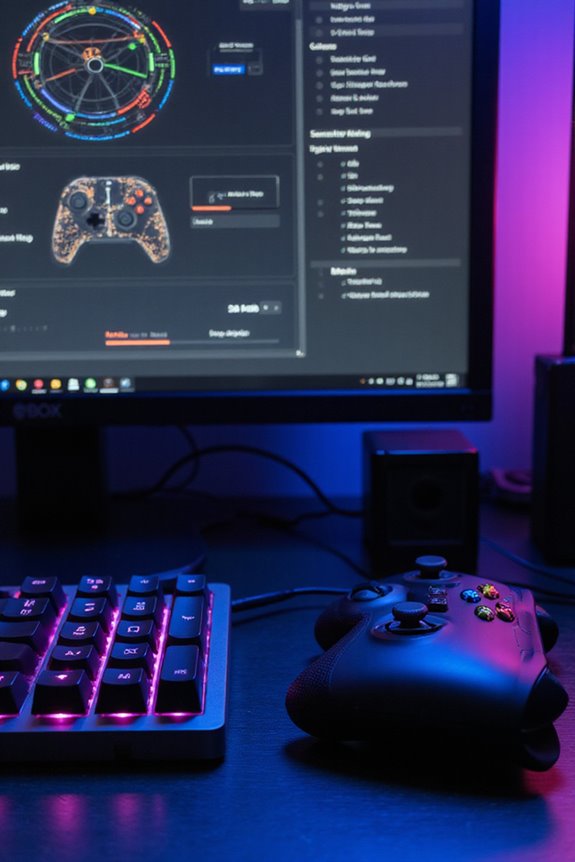
Utilizing third-party software for enhanced customization can really elevate your gaming setup. Programs like reWASD let you assign gamepad buttons to keyboard keys or mouse movements, which is a game changer. With profiles for different games, you can switch setups on the fly, tailoring your experience to fit your style. JoyToKey and SC Controller also offer fantastic emulation options, making your gaming life smoother. However, some of these tools come with a price tag, and not all controllers are compatible. There’s a bit of a learning curve, too, but the extra flexibility is worth it. So, if you want to take control of your gaming experience, exploring these options can be a solid choice.
Recommended Products

With broad game support, the Logitech Gamepad F310 works with old standbys to today's biggest titles, so it's easy to set up and use with your favorite games.

2.4G Wireless on Xbox and Windows PC – Officially licensed and compatible with Xbox Series X|S, Xbox One, and Windows.

💟Note: Supported Multi-Platform: Switch/Switch 2/iOS/Android/Windows PC 💔Not compatible with Xbox, PlayStation or GeForce Now, For game platforms not mentioned, please consult customer service before buying.
Setting Up Controllers on Steam
Setting up controllers on Steam can really enhance your gaming experience, especially after fine-tuning your setup with third-party software. I love how Steam supports various controllers, like Xbox and PlayStation, making it easy to connect via USB or Bluetooth. Once you launch Steam, it usually detects your controller automatically.
To really personalize your gameplay, enable Steam Input and adjust Dead Zone settings to combat stick drift. You can even customize button mappings for each game, which is a game-changer. Plus, switching to Big Picture Mode immerses you deeper into your gaming world. Just remember, the more you tweak, the better your performance can get. So, take a little time to explore the settings, and you might be pleasantly surprised!
Recommended Products

TMR Joysticks - Offering higher sensitivity, greater precision, and enhanced durability.

🎮 EasySMX X05 controller compatible with Black Myth: Wukong. 🎁 Includes a pair of thumb grips 🎁 This EasySMX X05 PC game controller supports Bluetooth & 2.4G & Wired.
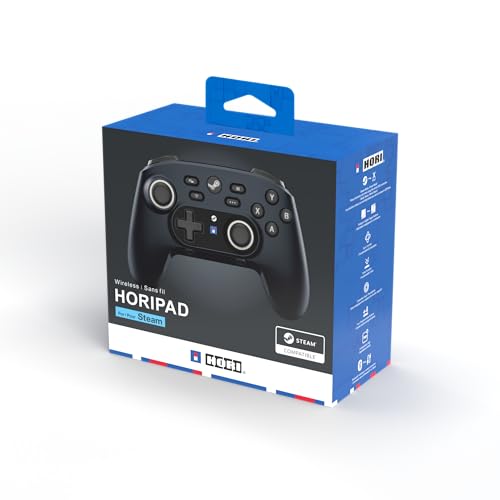
Rechargeable wireless pro controller designed for Steam for Windows 11/10 & Steam Deck
Troubleshooting Common Controller Issues
When you’re gaming, it’s frustrating to deal with controller issues, especially when they can disrupt your flow. If your controller isn’t compatible with a game, check the game specifications. A faulty connection? Make certain the cable is intact or try re-pairing your wireless controller. Sticky buttons can ruin your fun, so I recommend cleaning them regularly. Facing stick drift? A quick calibration usually does the trick! Don’t forget about battery issues; keep them charged to avoid interruptions. If problems persist, updating drivers or restarting your devices might clear things up. Finally, always keep an eye on power settings to prevent USB connection hiccups. A little maintenance goes a long way in keeping your gaming experience smooth and enjoyable! Consider using a charging station with safety features to protect your controllers from overcharging and overheating while ensuring they are always ready for your next game.
Recommended Products

【OLCLSS Xbox Elite Wireless Controller Series 2 Charging Station】Still concerned about your Xbox Elite 2 controller running out of power during intense gaming sessions? Our charging dock is the perfect solution, ensuring you never face interruptions during play. Specifically designed for Xbox One Elite Series 2 Controller Core (Model: 1797), it's the ultimate choice for every Xbox gamer.

Bold, eye-catching design looks great with any gaming set-up

Officially licensed by Xbox. Compatible with Xbox Series X|S and Xbox One wireless controllers.
Advanced Controller Customization Techniques
Advanced controller customization techniques can truly elevate your gaming experience, especially if you’re aiming for precision and responsiveness. For instance, button mapping allows you to configure commands for quick access, while paddle buttons let you replicate main buttons for faster reactions. Adjusting trigger stops can minimize travel distance, enhancing shooting speed. Additionally, tweaking thumbstick sensitivity and dead zones can greatly improve aim accuracy. Custom grips with ergonomic designs provide comfort during long sessions, and using anti-slip materials is a smart move to maintain control. Don’t forget about remapping software; it’s a game-changer for creating complex macros. With these adjustments, you’re not just playing—you’re mastering your controller, and that’s where the real fun begins. For an optimal experience, consider the battery performance of your custom controller, as extended play options may consume more power and affect your overall gaming sessions.
Recommended Products

【Initial Connection】(The controller for playstation 5 keep powered off)Connect the controller to the PS-5 console via USB cable → Press the ""Home"" button to power on → Select a user to log in → Unplug the USB cable → Press the Home button again to reconnect

PC Controller for Gaming: The EasySMX X15 wireless gamepad is built for Windows PC and Steam gaming, with full support for Switch and Android. Versatile control across your favorite platforms. Note: Not compatible with X-box, Luna, PS-4, PS-5

Turn your existing controller for PS5 into a professional eSport elite controller. Only compatible with PS5 Controller BDM-010 & BDM-020 (Check how to recognize your BDM model on YouTube by searching "extremerate check bdm for ps5 controller" or "fiE4BWSlBRI" before purchase), NOT fit for PS5 BDM-030 BDM-040 BDM-050 and other controller
Creating and Managing Game-Specific Presets
Creating game-specific presets is a game-changer for anyone looking to optimize their controller experience. With the ability to remap buttons, you can tailor your settings to fit the unique demands of each game. For instance, customizing sensitivity can drastically improve your aiming accuracy in shooters or enhance movement in platformers. Plus, saving these profiles means you can switch seamlessly between games without missing a beat.
Using management software like Xidi makes it easy to load your presets on the fly, enhancing your overall gameplay. While some games have limited controller support, these tools often bridge that gap, letting you enjoy a more personalized experience. So, plunge in, experiment, and let your controller work for you!
Enhancing Performance With In-Game Configuration
Optimizing your in-game configuration can really elevate your gaming experience. I’ve found that adjusting settings like resolution can greatly enhance FPS, especially if your graphics card struggles. Lowering the resolution might not sound glamorous, but it often leads to a smoother gameplay experience.
Also, don’t forget to enable Game Mode in Windows 10/11. It prioritizes resources for gaming, reducing latency. Keeping your drivers updated is vital too; outdated graphics and controller drivers can cause frustrating bottlenecks.
Finally, tweaking controller sensitivity to fit each game’s pace has helped me feel more in control. Regularly monitoring performance metrics lets you spot issues early, ensuring you’re always at your best. Happy gaming!
Community Resources for Controller Configuration
When you plunge into the world of gaming, finding the right community resources for controller configuration can make all the difference. I’ve found that guides like Steam Controller 101 and Microsoft’s Xbox setup pages are invaluable. They genuinely help with Bluetooth pairing and button mapping, which can enhance your gaming experience. YouTube is another treasure trove; I often watch tutorials that walk me through custom settings on Steam and Xbox. Plus, forums like Dingoonity are filled with passionate gamers sharing their tweaks and tips. While some setups may feel overwhelming at first, the benefits of customizing your controller to fit your style are undeniably rewarding. Embrace these resources, and your gameplay will surely improve.
Frequently Asked Questions
Can I Use Multiple Controllers Simultaneously on One PC?
I’ve connected multiple controllers to my PC without any hassle. Just remember, some games don’t support them, so check compatibility first. Once set up, it’s a fun experience to share gaming moments!
Are There Any Compatibility Issues With Older Controllers?
Steering through the world of older controllers can feel like wandering through a maze. I’ve found compatibility issues often arise due to outdated drivers or power settings. It’s essential to stay updated for a smoother experience.
How Do I Reset My Controller to Factory Settings?
If you’re looking to reset your controller to factory settings, I’d suggest checking the manufacturer’s app or settings menu. It’s usually pretty straightforward, and I promise it’ll make your gaming experience much smoother.
Can I Use a Controller With Non-Gaming Applications?
You know what they say, “the sky’s the limit.” I’ve found that controllers can work wonders with non-gaming apps, making everything from presentations to video editing feel more natural and enjoyable. Give it a try!
What Should I Do if My Controller Vibrates Unexpectedly?
If my controller vibrates unexpectedly, I’d first check the settings to verify everything’s configured right. Then, I’d try restarting the device and updating the software. Sometimes, a little maintenance can work wonders!